About
Replies that stick to what you mean
ReplyContext is an iPhone app made by helpful bits GmbH in Grünwald, near Munich. You give it the message you got and a few words about your answer. It writes one reply, and you edit, copy and send it yourself.
What the app does
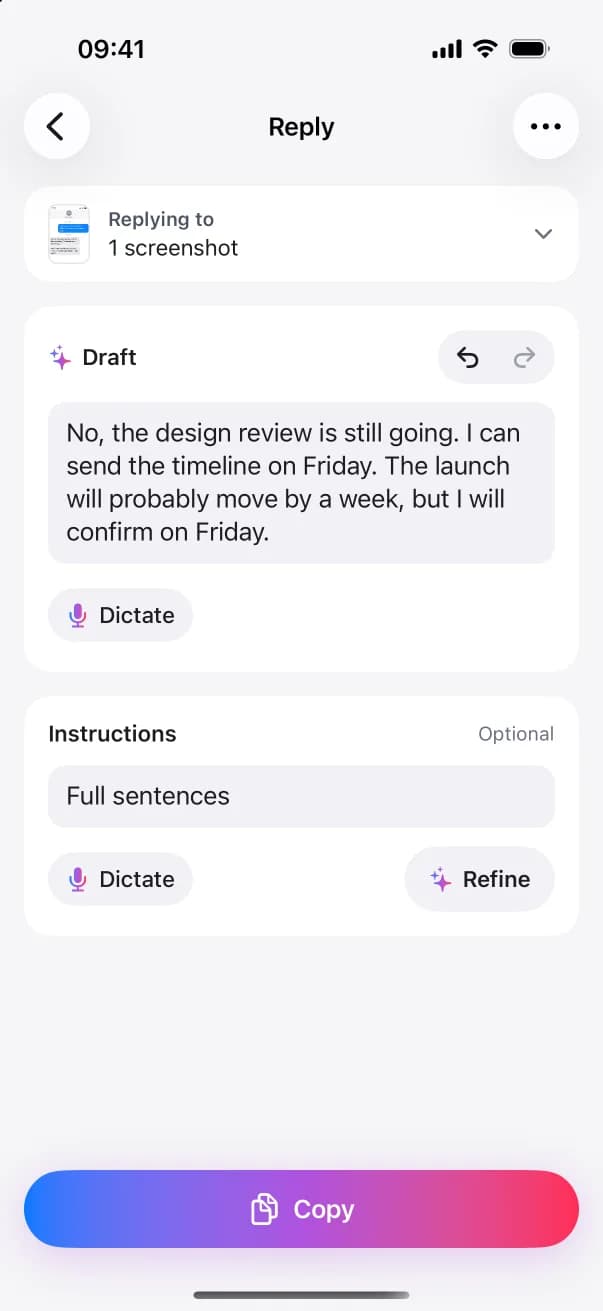
A message comes in on WhatsApp, Mail, Slack or Microsoft Teams. Share it, or a screenshot of it, to ReplyContext, or add it in the app with Paste, Photos or Files. Type or dictate roughly what you want to say, like “yes, but ten minutes late”, and tap Draft Reply. You get one reply that you can edit: your words, tidied and kept short. Change it yourself, or type an instruction such as “full sentences” or “friendlier” and tap Refine. With no instruction the button reads Polish: it fixes grammar, punctuation and dictation slips without changing what you say. Then copy the reply and paste it into the conversation.
11Got a message to answer?
A friend in a chat, a client in a work channel, an email that needs care.
Microsoft Teams · Slack
Share
22Bring it into ReplyContext
Tap Share on the message, or on a screenshot of it, and choose ReplyContext. Or copy it and paste it in.
33Say it roughly
Type or dictate a few words. They don’t need to be sentences.
44Get one reply
Tap Draft Reply. ReplyContext tidies your words into a reply and adds nothing you didn’t say. Then tap Copy.
 ReplyContext
55Send it yourself
Paste the reply into your chat and send it. ReplyContext never sends anything for you.
Microsoft Teams · Slack
Paste
- Works with
- Any app you can copy text from or take a screenshot of. The reply goes wherever you can paste: WhatsApp, Messages, Mail, Gmail, Outlook, Slack, Microsoft Teams, LinkedIn, Telegram, Signal and others.
- Requires
- An iPhone with iOS 18.4 or later, an account and an internet connection.
- Language
- The app’s menus and buttons are in English. Replies come in the language you write in.
How we build it
Your words
ReplyContext tidies your rough words into a reply: capital letters, punctuation, short forms like “tue” written out. It keeps the reply short unless you ask for more. It is built not to add facts, promises, deadlines, apologies or feelings you didn’t state, and to keep your meaning, language and tone. If your words leave out a detail the reply needs, the app can ask one quick question instead of guessing. You read every reply and can edit it before you copy it.
- yes,becomesYes,
- wednesday afternoon,becomesWednesday afternoon—
- waiting on financebecomeswaiting on Finance.
- no greetingso this is not written:
Hi Priya, - no deadlineso this is not written:
By noon. - no apologyso this is not written:
Sorry for the wait. - no promiseso this is not written:
I promise.
Replies can differ a little from one try to the next. You can always edit them before you copy.
You send it
ReplyContext never sends anything for you, and it isn’t connected to your chat apps. The last step in the app is Copy: you paste the reply into the conversation and send it yourself.
Draft
Yes, Wednesday afternoon—waiting on Finance.
Copy
Your clipboard
Yes, Wednesday afternoon—waiting on Finance.
You paste it and send it
You9:52
Yes, Wednesday afternoon—waiting on Finance.
Paste
Private by default
The message you bring in, your words and the reply are only used to write the reply. We don’t keep them on our servers. We only keep what’s needed for billing. Replies are written with Google Gemini through our server in Germany. On your iPhone, a reply you haven’t copied stays until you delete it. Copied replies stay for 30 days. In Settings → Reply History you can choose 7, 30 or 90 days, or turn off Keep copied replies. You can delete any reply yourself.
Your iPhone
Stays here
- Your replies, with what you captured for them
- Your personal vocabulary
- Your Writing Style numbers, if you turn that on
Your message and your words
The reply
ReplyContext server, Germany
Kept
- What’s needed for billing
Not kept
Your messagesYour wordsThe replies
Your message and your words
The reply
Google Gemini
What it does
- Writes the reply
- Turns your dictation into text
Memory is optional
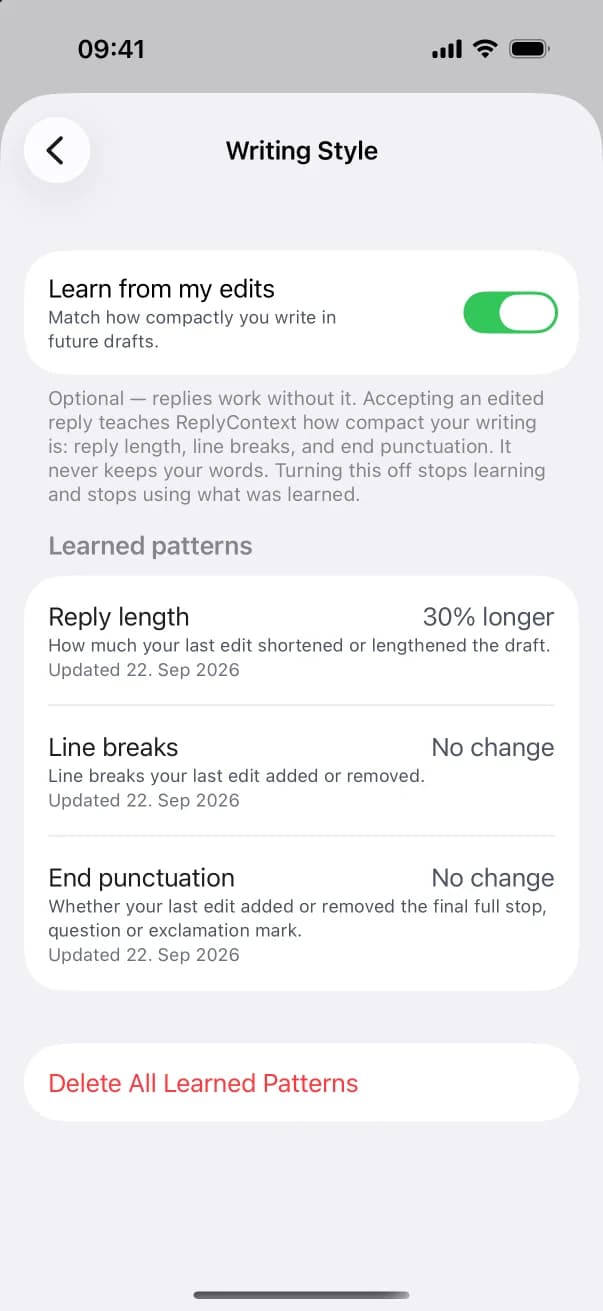
Writing Style is off until you turn on Learn from my edits. Then, when you edit a reply before copying it, the app updates three numbers: reply length, line breaks and end punctuation. It never keeps your words. You can see the numbers in Settings → Writing Style, delete one or all of them, or turn learning off. You don’t need to set anything up for your first reply.
Learn from my editsOff until you turn it on
20% shorter
Reply length
1 fewer
Line breaks
Removed
End punctuation
Three numbers, as an example. Your words are never kept.
The company
- Company
- helpful bits GmbH
- Location
- Grünwald (Munich), Germany