AI reply writer for iPhone
Reply to any message in your own words.
Share or screenshot the message, say roughly what you mean, and get one reply you can edit. Then copy it into the chat and send it yourself.
For iPhone with iOS 18.4 or later
How it works
From their message to your reply in five steps
The same five steps work for a WhatsApp message, a Teams chat or an email.
11Got a message to answer?
A friend in a chat, a client in a work channel, an email that needs care.
Microsoft Teams · Slack
Share
22Bring it into ReplyContext
Tap Share on the message, or on a screenshot of it, and choose ReplyContext. Or copy it and paste it in.
33Say it roughly
Type or dictate a few words. They don’t need to be sentences.
44Get one reply
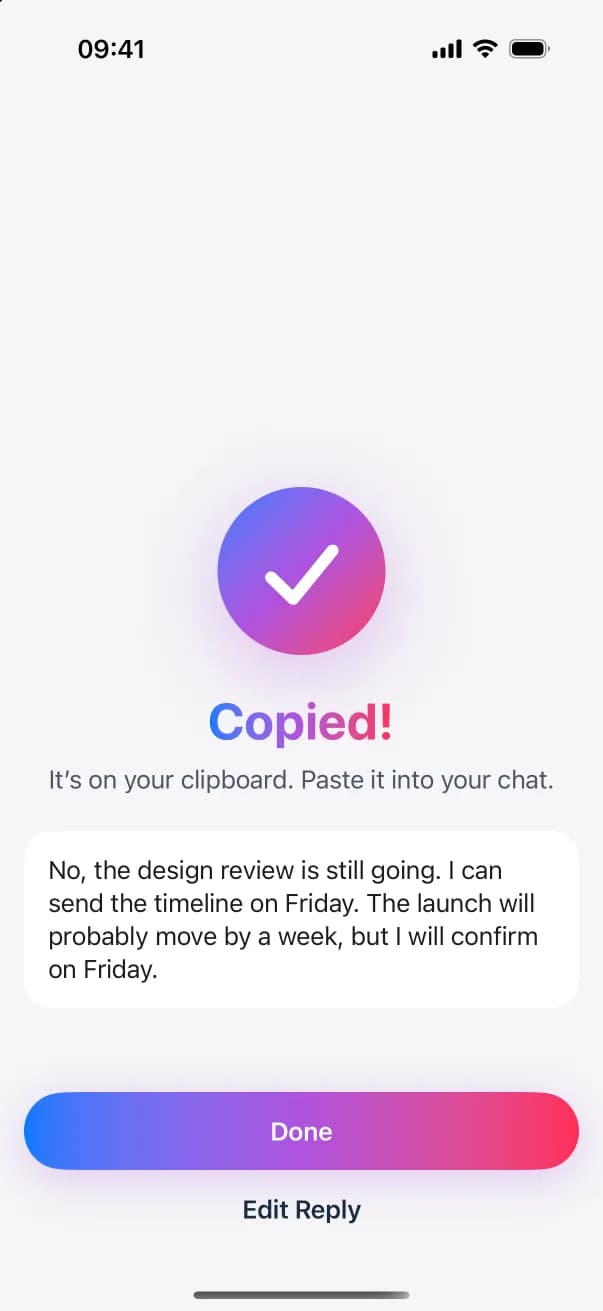
Tap Draft Reply. ReplyContext tidies your words into a reply and adds nothing you didn’t say. Then tap Copy.
 ReplyContext
55Send it yourself
Paste the reply into your chat and send it. ReplyContext never sends anything for you.
Microsoft Teams · Slack
Paste
Works with your apps
Any app you reply in, at home or at work
There is nothing to connect. You bring the message in, and you paste the reply back wherever the conversation is.
Microsoft Teams · Slack
WhatsApp · Messages
Outlook · Gmail
LinkedIn · Messenger
Share
Tap Share on the message and choose ReplyContext. The reply is written right there, without leaving the app you’re in.
Screenshot
Take a screenshot of the conversation and share it. In the app, you can add up to three from Photos.
Copy and paste
Copy the text, tap New Reply in ReplyContext and paste it under Replying to.
It never sends
ReplyContext isn’t connected to any of these apps.
Your clipboard
Tap Copy, switch back to the conversation and paste. You check it and send it yourself.
It works the same with Telegram, Signal, Mail and any other app you can share from, take a screenshot in or copy text from.
Where it helps
The replies that usually take longest
Three examples: the message, what you type, and the reply the app wrote from it.
Work · Teams, Slack or Outlook
A client wants an update
Microsoft Teams · Slack
Launch plan
5 members
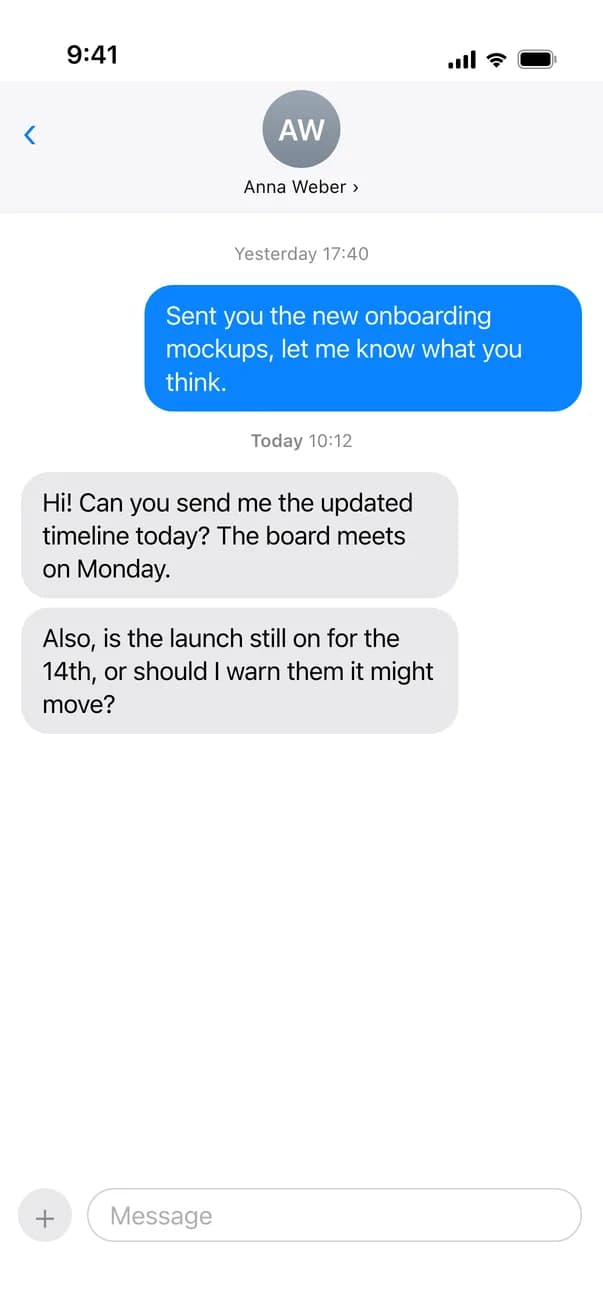
Message:AWAnna Weber10:12
Hi! Can you send me the updated timeline today? The board meets on Monday. Also, is the launch still on for the 14th, or should I warn them it might move?
ReplyContextYou typeNo, design review still going. Friday for the timeline. Launch prob +1 week, confirm Fri
Reply:MEYou10:20
No, the design review is still going. I'll have the timeline on Friday. Launch will probably move by about a week, but I'll confirm on Friday.
Reply
Short forms such as “prob” and “Fri” are written out.
Second language
Writing in English when it isn’t your first language
Outlook · Gmail
Message:JCJames Carter8:05
to me
Could you join the supplier call on Thursday at 3?
ReplyContextYou typeyes can join but only 30 min, have other meeting after
Reply:MEYou8:31
to James Carter
Yes, I can join, but only for 30 minutes. I have another meeting after.
Replies come in the language you write in.
Personal
The one you’d otherwise reread three times
WhatsApp · Messages
JOJonas
online
Message:Any chance you could help me move on Saturday?
18:07
ReplyContextYou typecant sat, my sisters wedding. could do sunday morning
Reply:Can't Saturday, my sister's wedding. Could do Sunday morning.
18:15
Message
No apology added: you didn’t write one.
Your words
It writes what you said. Nothing more.
ReplyContext tidies your rough words into a reply: capital letters, punctuation, “tue” written out as “Tuesday”. It keeps your meaning, your language and your tone, and keeps the reply short unless you ask for more.
- yes,becomesYes,
- wednesday afternoon,becomesWednesday afternoon—
- waiting on financebecomeswaiting on Finance.
- no greetingso this is not written:
Hi Priya, - no deadlineso this is not written:
By noon. - no apologyso this is not written:
Sorry for the wait. - no promiseso this is not written:
I promise.
Replies can differ a little from one try to the next. You can always edit them before you copy.
Nothing added
It’s built not to add facts, promises, deadlines, apologies or feelings you didn’t state.
A question, not a guess
If you ask for something without giving the detail, such as “tell her which day works”, the app asks one quick question instead of guessing.
Replying to
Are you free Thursday or Friday for the handover?
One quick question
Which day works for you, Thursday or Friday?
Add the missing detail to what you want to say, then draft again.
What do you want to say?
Draft Again
One reply, and the last word is yours
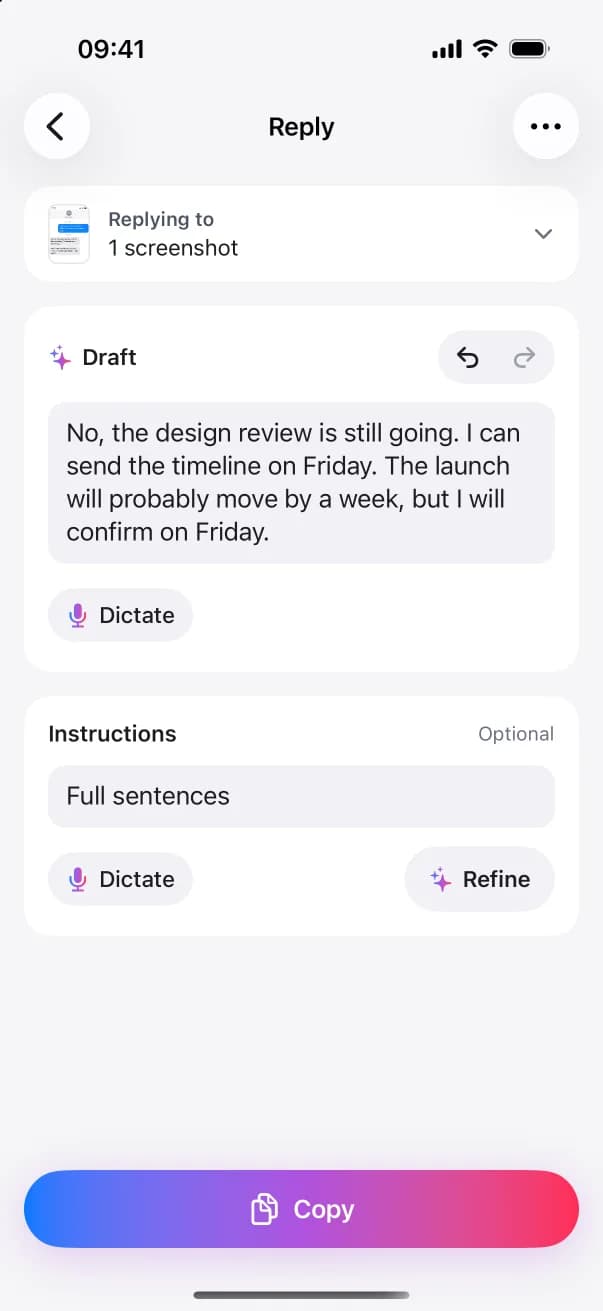
You get one reply to work with, not a list of versions to compare. Change any word in the draft, with undo and redo, before you copy it.
Draft
Yes, Wednesday afternoon morning—waiting on Finance.
Copy
Change it, polish it, dictate it
Change the reply with a few words, or polish a draft of your own
Change it with an instruction
Replies stay short. For more, type an instruction such as “full sentences” and tap Refine. It changes the same reply, and the words that changed are marked for a moment. You can also edit the draft yourself. With no instruction, the button reads Polish.
Instructions
OptionalDraft
Yes, I can send them on Wednesday afternoon. I am waiting on Finance.
Polish a draft you wrote
No message to answer? Leave Replying to empty, type or dictate what you want to send, and tap Polish Draft. It fixes grammar, punctuation and dictation slips without changing what you say. Add an instruction, like “shorter”, and the button becomes Refine Draft.
Replying to
OptionalWhat do you want to say?
Polish Draft
Draft
Hi Tom, thanks for the intro to Sam, really appreciate it. Would love a call next week—Tue or Wed afternoon works for me.
Dictate instead of typing
Tap Dictate in the app and speak for up to 60 seconds. What you said appears as text you can edit. Dictation never sends anything.
Before your first recording, the app asks if it may send the recording and your personal vocabulary to Google Gemini, which turns speech into text. After that, the recording is deleted from your iPhone.
015304560 s
What do you want to say?
Names spelled your way
Add names and terms under Settings → Dictation → Personal Vocabulary. They’re kept only on your iPhone and sent along with each recording. When you correct a dictated name, the app offers to add it.
What do you want to say?
Add “Priya Shah” to your vocabulary?
Don’t addAdd
Your Words
- Priya Shah
- Northwind
- Q3
Only on this iPhone
Privacy
Private by default
The message you bring in is only used to write your reply. What stays on your iPhone, you can see and delete.
We don’t keep your messages on our servers
To write a reply, your message and your words go through the ReplyContext server in Germany to Google Gemini, and the reply comes back the same way. We don’t keep any of it. We only keep what’s needed for billing.
Your iPhone
Stays here
- Your replies, with what you captured for them
- Your personal vocabulary
- Your Writing Style numbers, if you turn that on
Your message and your words
The reply
ReplyContext server, Germany
Kept
- What’s needed for billing
Not kept
Your messagesYour wordsThe replies
Your message and your words
The reply
Google Gemini
What it does
- Writes the reply
- Turns your dictation into text
On your iPhone, you set how long
A reply stays with what you captured for it until you delete it. Once you copy it, it’s kept for 30 days. In Settings → Reply History, choose 7, 30 or 90 days, or turn off Keep copied replies to remove each reply the moment you copy it. You can delete any reply, or all copied replies, whenever you like.
Not copied yet
until you delete it
Copied
7 days
30 daysunless you change it
90 days
Keep copied replies off: removed the moment you copy it
Writing Style memory is off until you turn it on
Turn on Learn from my edits, and editing a reply before you copy it updates three numbers: reply length, line breaks and end punctuation. Copying without an edit teaches nothing. See the numbers in Settings → Writing Style, delete one or all of them, or turn learning off. Nothing needs setting up before your first reply.
Learn from my editsOff until you turn it on
20% shorter
Reply length
1 fewer
Line breaks
Removed
End punctuation
Three numbers, as an example. Your words are never kept.
FAQ
Questions and answers
What is ReplyContext?
An iPhone app that writes one reply to a message you got. You bring in the message, say roughly what you want to answer, and get one reply to edit, copy and paste. You need an account and an internet connection.
Which apps does it work with?
Any app you can take a screenshot in or copy text from, and any app where ReplyContext shows up when you tap Share: WhatsApp, Messages, Mail, Gmail, Outlook, Slack, Microsoft Teams, LinkedIn, Telegram or Signal, for example. ReplyContext isn’t connected to these apps. You paste the reply into them yourself.
How does the reply get into the chat?
You tap Copy, paste it into the conversation and send it yourself. ReplyContext never sends anything for you. If you start by tapping Share, the reply is written right there, so you can copy it without opening the app.
Can I dictate instead of typing?
Yes, in the app: tap Dictate and speak for up to 60 seconds. What you said appears as text you can edit, and dictation never sends anything. Before your first recording, the app asks if it may send the recording and your personal vocabulary to Google Gemini, which turns speech into text. After that, the recording is deleted from your iPhone.
Will it put words in my mouth?
It tidies your words: capital letters, punctuation, and short forms like “tue” written out. It’s built not to add facts, promises, deadlines, apologies or feelings you didn’t state, and to keep your meaning, language and tone. The reply stays short unless you ask for more, for example with the instruction “full sentences”. If your words leave out a detail the reply needs, it can ask one quick question instead of guessing. It can still get things wrong, so you read and edit every reply before you copy it.
What is kept, and where?
We don’t keep your messages, your words or the replies on our servers. We only keep what’s needed for billing. On your iPhone, a reply stays with what you captured for it until you delete it. Once you copy it, it’s kept for 30 days. You can choose 7, 30 or 90 days in Settings → Reply History, or turn off Keep copied replies. You can delete any reply, or all copied replies, whenever you like.
Does it learn from me?
Only if you turn on Learn from my edits in Settings → Writing Style. It’s off until you do. Then, when you edit a reply before copying it, the app updates three numbers: reply length, line breaks and end punctuation. It never keeps your words, and copying without an edit teaches nothing. You can see the numbers, delete one or all of them, or turn learning off.
What about the other person’s messages?
The message you bring in usually contains someone else’s words. It’s only used to write the reply you asked for, with Google Gemini through the ReplyContext server in Germany. We don’t keep it on our servers. On your iPhone it stays with that reply until the reply is deleted, by you or by your Reply History setting.
Is it only for iPhone? Which languages?
ReplyContext is an iPhone app for iOS 18.4 or later. Its menus and buttons are in English. Replies come in the language you write in.
Try it on the next message you need to answer
Download ReplyContext, share the message, say what you mean, and copy your reply.
Download on the App StoreFor iPhone with iOS 18.4 or later